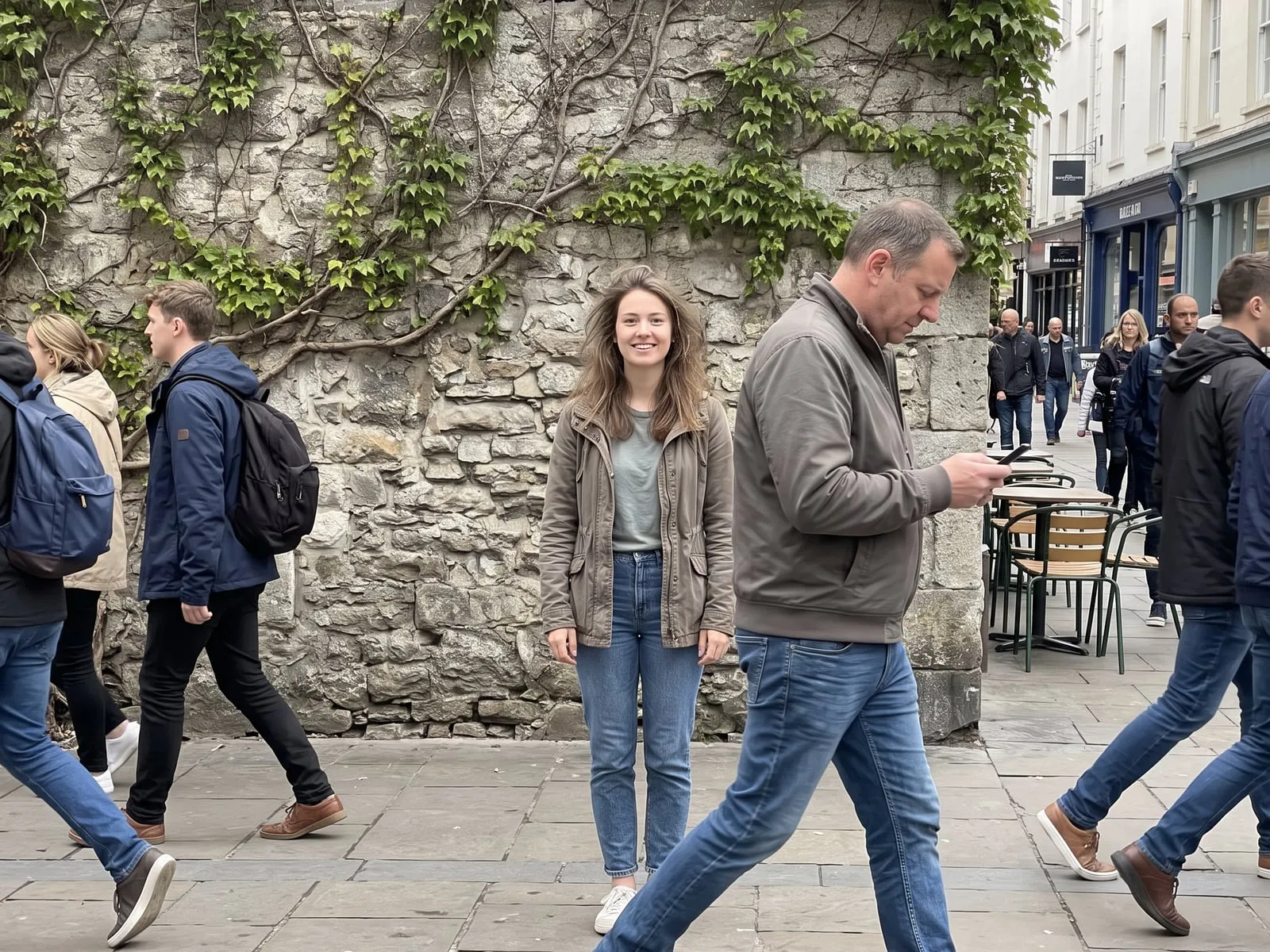
App That Shows You How to Pose: What to Look For

If you want an app that shows you how to pose, the kind to look for is one that puts the pose inside your camera, as an outline you line yourself up with. A list of pose photos you scroll through is a different tool, and it’s the reason a lot of people try a pose app, still freeze in front of the lens and delete it.
This post explains the three kinds of pose app, which one fits which problem, and how to actually use a camera pose guide so the photo doesn’t look like you’re copying a diagram. One of those kinds is PosePal, an iPhone app, and this post says plainly what it does and what it doesn’t.
The three kinds of pose app
Almost every app that claims to help you pose is one of these. They solve different problems, so the right one depends on what’s going wrong in your photos.
| What you need | Kind of app | What it gives you | Where it falls short |
|---|---|---|---|
| “I never know what to do with my body” | Camera overlay guide | A pose outline on the live viewfinder. You move until you match it. | You still need someone (or a timer) to press the shutter |
| “I know what I want, I can’t find the idea” | Reference library | A big set of pose pictures to browse and screenshot | The pose is on a different screen from your camera, so you pose from memory |
| “I’m directing someone else” | Photographer’s guide | Pose cards and tips for clients | Written for the person behind the camera, not the one in front of it |
If you’re the one in front of the lens, the first row is the one that changes your photos. You’re not remembering a pose. You’re matching a shape while you look at yourself on screen.
Why seeing it live works better than remembering it
A pose in a gallery looks easy. Then you stand up, hold the phone out and your brain deletes it. Three things usually go wrong.
You remember the arms and forget the weight. Most of what makes a pose look relaxed is where your weight sits (one foot back, hips slightly turned). An outline on the viewfinder shows the whole shape at once, so you copy that too.
You can’t check yourself mid-pose. Looking back and forth between a reference and a mirror is clumsy. When the guide and your own image are in the same frame, you can see the difference in a second: your shoulder is too high, your head is too far left.
You tense up. Having something specific to match gives your hands and face a job. People look stiff when they’re waiting to be photographed, and a task is a decent cure for that.
How to use a camera pose guide so it looks natural
A guide gets you into position. It can’t make you look relaxed. These are the habits that make the difference.
1. Match the angles, not every finger
Get the big shapes right: which way your shoulders face, where your head tilts, which leg carries your weight. Ignore the fingers. If you’re hunting for a perfect finger position you’ll look like you’re hunting for a finger position.
2. Resize it to you
A guide drawn for a generic figure is never your height or your distance from the camera. In PosePal you can pinch to resize the overlay, drag it, and turn it, and there’s a button to recenter it and another to reset the size. Make the outline fit your actual frame first, then line up.
3. Turn the strength down once you’re lined up
A solid outline is useful while you’re finding the pose. Once you’re close, fade it with the strength slider so you can see your own face and hands. You’re checking yourself, not tracing.
4. Lock it, then stop looking at it
Lock the overlay so it doesn’t drift when you touch the screen. Then do the pose, take a breath out and look at the lens or away from it, not at the outline. The guide’s job ends when you’re in position.
5. Use the timer
You can’t hold a phone, match a guide and press the shutter without something moving. Prop the phone up (a shelf, a stack of books, a bag) and use the 3 second or 10 second self-timer. Three seconds is enough when the phone is a step away. Use ten if you have to walk back into the frame.
6. Take several, then pick
The first one is usually the stiffest. Shoot five, shift slightly each time, and choose after. A slightly off-pose with a real expression beats a perfect pose with a frozen face.
A common mistake: choosing a pose that doesn’t fit the spot
The biggest reason a guided pose looks wrong is that the pose came from a different situation than the one you’re in. A leaning pose needs something to lean on. A seated pose looks odd on a bare floor. A full-body pose needs the whole body in the frame, so check how much room you’ve got behind you before you pick.
A quick fix: choose the pose second. Look at where you are, what’s at hand (wall, chair, railing, nothing), then browse for a pose that uses it.
Using your own reference photo
Sometimes you’ve already got a photo you love, from a friend, from a shoot, or one of your own that came out well. PosePal’s overlay mode lets you pick a photo you saved and ghost it over the viewfinder, so you can recreate it. Again you can pinch, drag and turn it. If the reference is sideways, there’s a button for a quarter turn.
This is useful for a repeat: same spot, same look, a year later. It’s also good for a couple who liked one shot and want a second take.
What PosePal does and doesn’t do
Since you asked about an app, here’s the honest version.
- It’s an iPhone app. There’s no Android version.
- The camera has three modes: overlay (a photo of your own, ghosted on the viewfinder), normal (a plain camera), and poses (a pose from the library as the guide).
- The library has 330+ poses, sorted into casual, selfies, dating profile, fitness, couple, honeymoon, flirty and group. You can switch between female and male figures.
- A few poses in every category are free to line up with, and the rest need Pro. Taking a photo while a pose or your own reference photo is showing on screen also needs Pro. The plain camera is free.
- It doesn’t tell you whether your pose is “right”. There’s no scoring or correction. It shows the shape and you match it.
- There are also AI editing tools (Digital Flash, AI Skin Retouch, Background Remover). They’re Pro, and they send the photo to Google’s Gemini AI to process it, so only use them on photos you’re happy to send. Digital Flash works on a photo you already have, picked from your gallery, not while you shoot. Background Remover is paint-only: you paint over what you want gone.
None of the editing is needed for posing. It’s there if you want it after.
If you want to practice first
Before you use any app, spend two minutes with the basics. They’re what keeps guided poses from looking guided:
- Sort out your hands first. What to do with your hands in photos covers positions that work.
- If you’re posing with someone, couple poses that don’t look staged gives you ideas where both people have something to do.
Then open the camera, pick one pose, and shoot ten frames with the timer. You’ll learn more from ten bad frames than from an hour of browsing.