How to Fix a Dark Photo on iPhone (Free, in 2 Minutes)

You took a great photo. Then you looked at it later and it’s a dark smudge with a face somewhere in the middle.
Most dark photos can be saved, and you don’t need an editing app to do it. The Photos app on your iPhone already has the right sliders. You just have to use them in the right order.
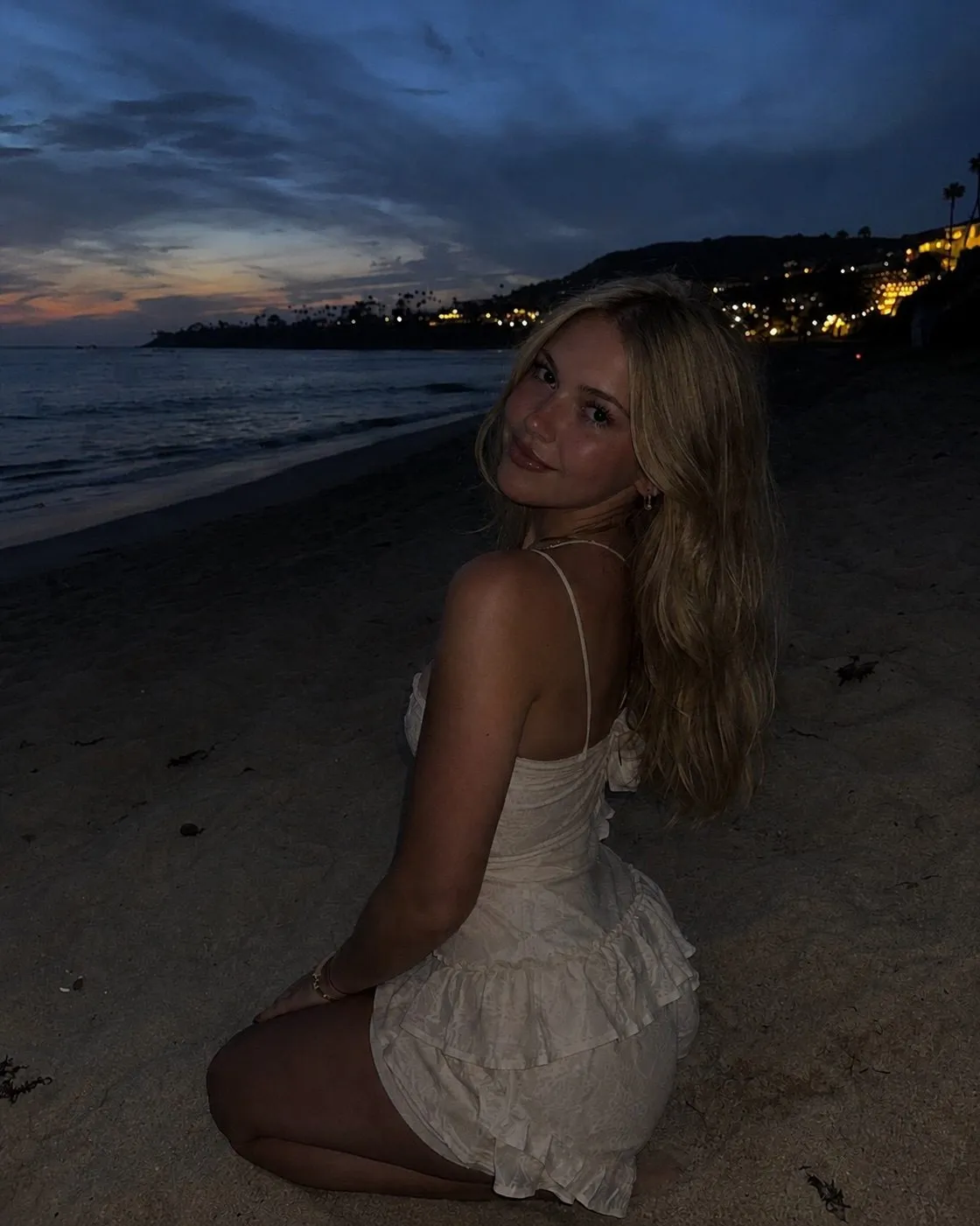
A typical dark photo: the moment is there, but the face is lost in shadow.
Fix it in the Photos app
Open the photo in Photos and tap Edit. Depending on your iOS version it’s either a button that says Edit or an icon of three sliders. Then open the Adjust tools. You’ll see a row of controls with a dial or slider under each one.
Don’t worry about wrecking the photo. Edits in Photos never overwrite the original, and you can always tap Revert to go back.
1. Try Auto first
Tap the Auto button (the magic wand). It adjusts several sliders at once and often gets you most of the way. If the result looks good, you’re done. If not, keep going from wherever Auto left it.
2. Raise Shadows
This is the slider that saves most dark photos. Shadows brightens only the dark parts of the picture and leaves the bright parts alone. Faces in a dark scene usually sit in the shadows, so they come up first. Push it until you can see the face clearly.
3. Add Brilliance
Brilliance brightens dark areas and pulls back the brightest ones at the same time. It makes a photo look less flat. A little goes a long way.
4. Then Exposure, gently
Exposure brightens everything, including the parts that were already bright. Use it last and use it lightly. Too much and the sky, street lights or a white top turn into a blank white patch with no detail left in it.
5. Pull Highlights down if lights look blown out
If lamps, a window or the sky look too bright now, lower Highlights. It brings detail back into the brightest parts.
6. Put some Black Point back
Brightening a dark photo can leave it looking grey and washed out. Raising Black Point a touch makes the darkest parts properly dark again, so the photo has some punch.
7. Clean up the grain
A very dark photo that’s been brightened a lot gets grainy. That grain is called noise. Slide Noise Reduction up a little to smooth it. Go too far and skin starts to look like plastic, so stop as soon as the speckles calm down.
8. Fix the color last
Night photos often come out too orange from street lights or too blue from screens. Use Warmth to fix that, and add a little Vibrance if the colors look dull after all the brightening.
Tap Done. If you want to compare, tap the photo while editing to flip between before and after.
What editing can’t fix
Here’s the honest limit. Brightening a photo can only reveal what the camera actually caught. If a face was pure black, there’s nothing there to bring back, and pushing the sliders just gives you a grey, grainy blob.
The darker the original, the more noise you’ll see after brightening. That’s not something you did wrong. It’s how phone sensors work in low light.
How to stop taking dark photos
The best fix happens before you press the shutter.
- Tap the face before you shoot. Your iPhone sets the brightness for whatever you tap. Then drag the little sun icon next to the focus box up to brighten the picture.
- Let Night mode work. On iPhone 11 and later, Night mode switches on by itself in low light (the moon icon at the top turns yellow). Hold the phone as still as you can until it finishes.
- Turn the flash on. It’s not flattering in every situation, but a flash photo with a clear face beats a moody photo with no face at all.
- Face the light. Turn the person toward a lamp, a window or a lit shop front. Light on the face matters more than how bright the room is.
- Watch for light behind them. A bright sky or window behind someone makes the camera darken everything to cope, so their face goes dark. Move so the light is beside or in front of them.
- Wipe the lens. A smudged lens blurs every light into a haze, which makes dark photos look worse.
When the sliders aren’t enough
Sometimes you’ve done all of the above and the photo still looks dark and dull, like it was taken in bad light, because it was.
That’s what Digital Flash in PosePal is for. You pick a photo you already took from your gallery and it relights it, as if a flash had fired when you took it. It’s an AI tool, so it sends the photo to Google’s Gemini AI to do the relighting, and it’s part of PosePal Pro.
For most photos, though, start with the free sliders above. Shadows alone fixes more dark photos than anything else.